
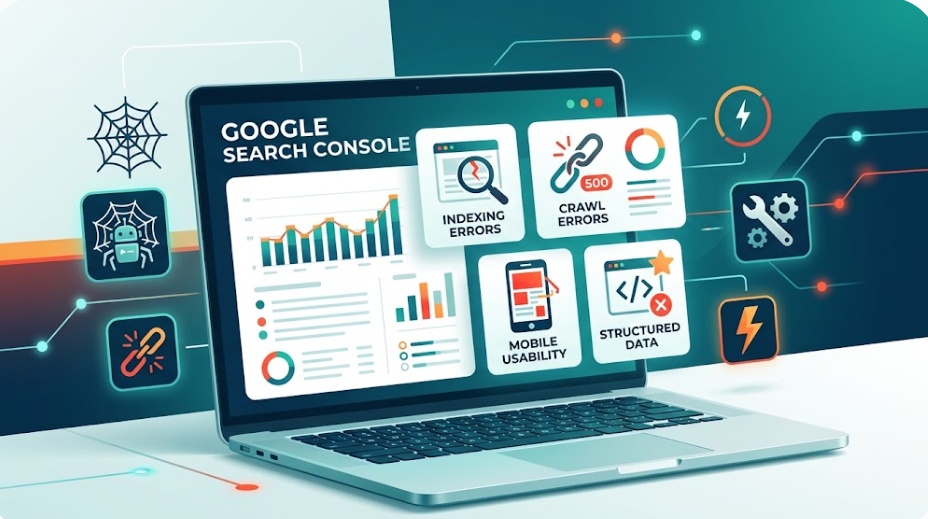
Google Search Console (GSC) is an essential tool for monitoring your website’s performance, indexation, and technical health. However, encountering errors in GSC can prevent your pages from appearing in Google Search results.
Understanding these errors, why they happen, and how to fix them is critical to maintaining high search visibility and organic traffic. This comprehensive guide covers every major type of Google Search Console error, broken down into clear, actionable categories.
1. Indexing and Coverage Errors
Coverage errors occur when Google’s crawler finds a page on your site but cannot index it or decides not to include it in the search index.
- Server Error (5xx):
- What it means: Googlebot attempted to access your site, but your web server returned a 500-level status code (such as 500 Internal Server Error, 502 Bad Gateway, or 503 Service Unavailable).
- Why it happens: Server overload, PHP timeouts, database connection drops, or faulty plugins/scripts.
- How to fix: Check server resource usage, consult server logs, contact your hosting provider, or temporarily increase server capacity.
- Redirect Error:
- What it means: Google encountered an issue while following a redirect link on your website.
- Why it happens: Redirect loops (Page A points to Page B, which points back to Page A), broken redirect chains, or invalid redirect URLs.
- How to fix: Audit your site’s
.htaccessfile, plugin settings, or server configuration to ensure all redirects lead directly to a final, active target page.
- Submitted URL Blocked by robots.txt:
- What it means: You submitted a URL for indexing (e.g., in your XML sitemap), but your
robots.txtfile actively tells Googlebot not to crawl it. - Why it happens: Conflict between sitemap directives and
robots.txtdisallow rules. - How to fix: Decide if the page should be indexed. If yes, remove the
disallowrule fromrobots.txt. If no, remove the page from your XML sitemap.
- What it means: You submitted a URL for indexing (e.g., in your XML sitemap), but your
- Submitted URL Marked ‘noindex’:
- What it means: A page submitted in your sitemap contains a
<meta name="robots" content="noindex">tag or an X-Robots-Tag HTTP header. - Why it happens: Conflicting instructions—sitemaps request indexing, but meta tags explicitly forbid it.
- How to fix: Remove the
noindextag from pages you want indexed, or remove non-indexable pages from your sitemap.
- What it means: A page submitted in your sitemap contains a
- Submitted URL Seems to be a Soft 404:
- What it means: A page displays “Not Found” or empty content to users, but returns a
200 OKHTTP status code to search engines. - Why it happens: Empty category pages, missing search results pages, or improperly configured custom 404 error pages.
- How to fix: Configure the server to return a true
404or410status code for missing content, or add meaningful content to the page.
- What it means: A page displays “Not Found” or empty content to users, but returns a
- Submitted URL Returns Unauthorized Request (401):
- What it means: Googlebot was blocked from accessing the page because it requires HTTP authentication or login credentials.
- Why it happens: Password-protected staging sites, admin pages, or restricted directories submitted in sitemaps.
- How to fix: Remove password protection from public pages or remove restricted URLs from your XML sitemap.
- Submitted URL Not Found (404):
- What it means: A URL in your XML sitemap points to a page that no longer exists on your server.
- Why it happens: Deleted content, changed URLs without proper 301 redirects, or broken links.
- How to fix: Restore the deleted content, set up a 301 redirect to a relevant live page, or remove the URL from the sitemap.
2. Crawling and URL Status Issues
Crawling errors occur when Googlebot experiences difficulties accessing, fetching, or resolving a URL before it can even attempt indexation.
- Crawled – Currently Not Indexed:
- What it means: Google crawled the page successfully, but chose not to index it.
- Why it happens: Duplicate content, low content quality, thin content, or overall site quality issues.
- How to fix: Improve content depth, consolidate duplicate pages, strengthen internal linking, and improve user engagement signals.
- Discovered – Currently Not Indexed:
- What it means: Google knows the URL exists, but has not yet crawled or parsed it.
- Why it happens: Crawl budget constraints, low internal page authority, or new domain status.
- How to fix: Improve internal linking to the URL, submit the page directly via the URL Inspection tool, and build external backlinks.
- Alternate Page with Proper Canonical Tag:
- What it means: Google correctly recognized a duplicate or mobile version of a page and respected your specified canonical URL.
- Status: This is generally an informative state, not a critical error requiring fixes, unless the wrong canonical tag was selected.
- Duplicate Without User-Selected Canonical:
- What it means: The page has duplicates, but you have not specified an official canonical source using
rel="canonical". - Why it happens: Parameterized URLs, HTTP vs. HTTPS variations, or trailing slash discrepancies.
- How to fix: Add explicit
rel="canonical"tags pointing to your preferred version of the URL.
- What it means: The page has duplicates, but you have not specified an official canonical source using
- Duplicate, Google Chose Different Canonical Than User:
- What it means: You specified a canonical URL, but Google ignored it and selected a different page as primary.
- Why it happens: The user-selected canonical page differs significantly in content from the original, or Google determined another page provides better context.
- How to fix: Align page content closely between variations, ensure self-referencing canonical tags where appropriate, and check internal link structures.
3. Mobile Usability Errors
With mobile-first indexing, mobile errors directly impact desktop and mobile rankings alike.
- Text Too Small to Read:
- What it means: The font size configured on the mobile version is too small for users to read without zooming.
- How to fix: Use responsive design principles and set dynamic base CSS font sizes (minimum 16px recommended).
- Clickable Elements Too Close Together:
- What it means: Links, buttons, or form controls are positioned so close together that mobile users cannot tap one accurately.
- How to fix: Increase button padding, line height, and element margins for touch targets.
- Content Wider Than Screen:
- What it means: Users must scroll horizontally to read content or view images on mobile devices.
- Why it happens: Fixed-width images, oversized CSS containers, or absolute positioning.
- How to fix: Use responsive CSS properties like
max-width: 100%for media assets and scalable viewport units.
- Viewport Not Set / Fixed Width Viewport:
- What it means: The page lacks a valid
<meta name="viewport">tag or forces a non-scalable width. - How to fix: Add
<meta name="viewport" content="width=device-width, initial-scale=1">to your HTML<head>.
- What it means: The page lacks a valid
4. Structured Data (Rich Results) Errors
Structured data schema helps search engines understand your content. Errors here prevent rich snippets (stars, FAQs, product details) from displaying in Search.
- Missing Field (e.g.,
price,author,image):- What it means: A required property for a specific Schema.org type (Product, Article, Recipe, Event) is missing.
- How to fix: Update your page’s JSON-LD script to supply all mandatory fields required by Google’s guidelines.
- Parsing Error (Invalid JSON-LD):
- What it means: Syntax errors in your structured data markup prevent Google from parsing the code.
- Why it happens: Missing commas, unmatched quotes, or illegal characters in JSON code.
- How to fix: Test markup using the Schema Markup Validator or Google’s Rich Results Test tool to fix syntax mistakes.
- Value Type Mismatch:
- What it means: A schema field contains the wrong data format (e.g., text string where a numeric value or date was expected).
- How to fix: Adjust template output to adhere strictly to expected data formats (such as ISO dates like
2026-08-24).
5. Security and Manual Actions
These issues are severe and can lead to immediate drops in traffic or total removal from Google Search.
- Manual Actions:
- What it means: A human reviewer at Google applied a penalty to your site for violating webmaster quality guidelines.
- Common causes: Unnatural links, thin content with little added value, hidden text, keyword stuffing, or user-generated spam.
- How to fix: Resolve the specific guidelines violation completely and submit a Reconsideration Request via Search Console.
- Security Issues (Malware and Hacked Content):
- What it means: Google detected malicious software, injected spam scripts, or phishing behavior on your domain.
- How to fix: Clean infected files, update CMS cores and plugins, reset passwords, remove malicious database entries, and request a security review in GSC.
6. Core Web Vitals and Page Experience Errors
Core Web Vitals measure real-world user experience based on speed, responsiveness, and visual stability.
- LCP Issue: Longer Than 2.5s (Largest Contentful Paint):
- What it means: Main page elements take too long to render visually.
- How to fix: Optimize main images, implement caching, reduce server response times (TTFB), and defer non-essential scripts.
- INP Issue: Longer Than 200ms (Interaction to Next Paint):
- What it means: The page responds slowly when users interact with it (clicking buttons, opening menus).
- How to fix: Reduce long JavaScript tasks, break up main-thread execution, and optimize event handlers.
- CLS Issue: More Than 0.1 (Cumulative Layout Shift):
- What it means: Page elements jump around unexpectedly as content loads.
- How to fix: Set explicit width and height dimensions on images and dynamic embeds/iFrames.
How to Fix Google Search Console Errors Effectively
- Prioritize Errors: Focus first on Server Errors (5xx), Manual Actions, and Security Issues, as these immediately cut off user traffic.
- Use the URL Inspection Tool: Inspect specific URLs directly inside GSC to view live HTTP responses, render screenshots, and test indexing status.
- Validate Fixes: After resolving an issue on your website, click the Validate Fix button inside the respective GSC report to request Google to recrawl and verify your changes.
Leave a Reply