
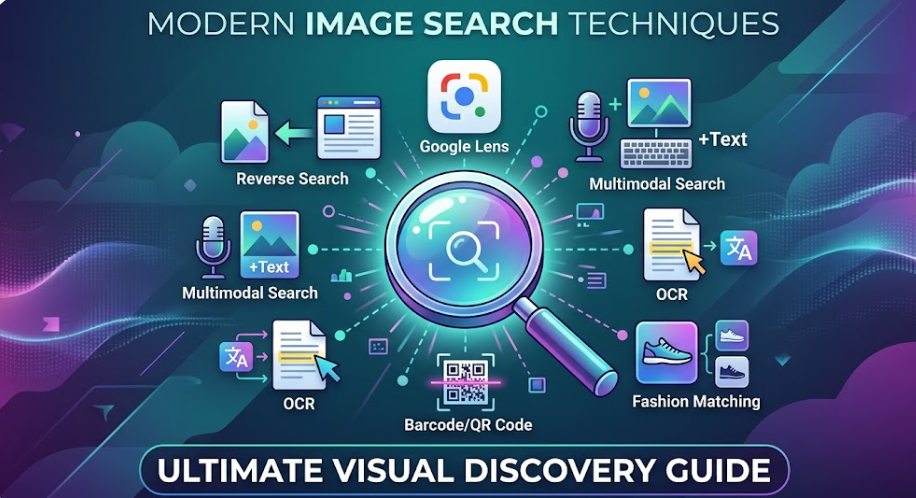
Finding the exact image you need online isn’t always as simple as typing a word into Google. We’ve all been there: you see a photo of a cool pair of shoes, a piece of furniture, or an interesting landmark, but you have zero idea what it’s called or where to find it.
That is where mastering image search techniques comes in.
Visual search has come a long way from just typing basic text into a search bar. Today, search engines can actually “see” what’s inside a photo—from colors and shapes to the text written on a store sign.
Whether you’re a digital marketer looking for link-building opportunities, a online shopper trying to find a better deal, or a blogger wanting your own photos to rank higher on Google, this guide covers all the practical image search techniques you need to know.
What Are Image Search Techniques?
In simple terms, image search techniques are the tools, tricks, and methods you use to find, track, or analyze photos on the internet.
Instead of just scanning text on a webpage, modern search engines use a mix of visual recognition, AI, and photo data to understand what an image actually shows.
┌─────────────────────────────────────────────────────────────┐
│                 HOW MODERN IMAGE SEARCH WORKS               │
├──────────────────────────────┬──────────────────────────────┤
│       TEXT-BASED SEARCH      │         VISUAL SEARCH        │
│  (Keywords, File names, Alt) │ (Reverse search, Lens, OCR)  │
└──────────────────────────────┴──────────────────────────────┘
When you know how to use these tools properly, you can easily trace where a photo came from, spot fake news images, find similar products, or get your own blog images to bring in steady organic traffic.
8 Practical Image Search Techniques You Should Use
Most people just type a couple of words into Google Images and hope for the best. But if you want fast and accurate results, here are 8 hands-on image search techniques that actually work.
1. Smart Keyword Tricks for Google Images
Instead of typing broad terms like modern office, use simple search tricks to narrow things down fast:
- Exact Phrases: Put quotes around your phrase (e.g.,
"white wooden desk") so Google only shows exact matches. - Filter by File Type: Add
filetype:pngorfiletype:svgif you need graphics with transparent backgrounds or vectors. - Search Specific Websites: Type
site:unsplash.com home officeto search only inside Unsplash. - Filter by Usage Rights: Go to Tools > Usage Rights > Creative Commons Licenses in Google Images to find pictures you can legally use on your website.
2. Reverse Image Search (Desktop & Mobile)
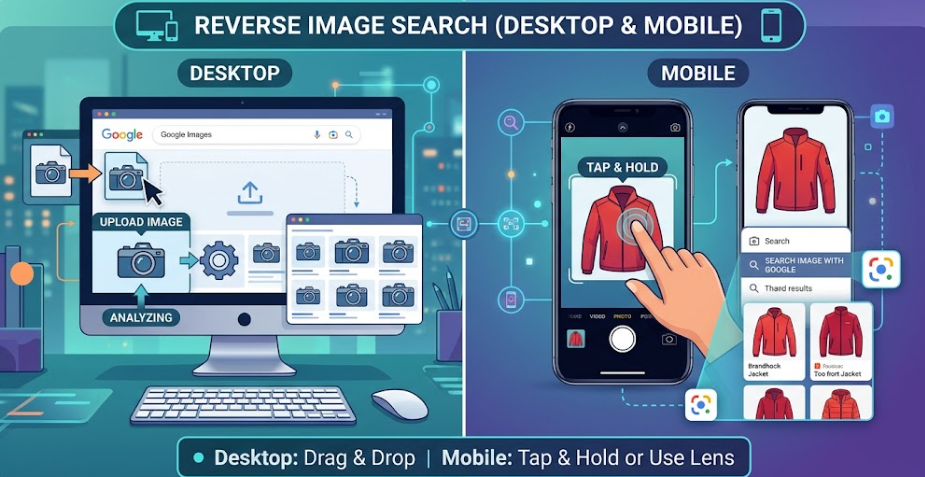
If you already have a photo and want to find out where it came from, reverse searching is your best friend.
- On Desktop: Just open Google Images, click the camera icon, and drag your photo directly into the search bar. You can also use sites like TinEye or Yandex.
- On Mobile: If you’re using Chrome on your phone, tap and hold any image on a webpage and hit “Search image with Google”.
3. Crop Tightly to Spot-Search Specific Items
If your photo has a lot going on in the background, search engines might get confused about what you’re actually looking for.
- Upload your photo to Google Lens or Bing Visual Search.
- Drag the crop corners tightly around the exact item (like a watch on someone’s wrist or a lamp in a living room photo).
- This forces the tool to ignore the rest of the picture and focus only on matching that single item.
4. Combine Images with Text (Multimodal Search)
Did you know you can search using a photo and text at the same time?
- How to use Google Multisearch: Snap a photo of a dress with Google Lens, swipe up, tap “+ Add to your search”, and type something like “blue color” or “short sleeves”.
- The engine takes the visual pattern from your photo and mixes it with your text request to find exactly what you want.
5. Extract Text from Graphics (OCR)
If you have a photo of a restaurant menu, a street sign in another language, or a screenshot of a document, you don’t need to retype anything by hand.
- Open the photo in Google Lens or use Live Text on iPhone/Android.
- Highlight the text inside the photo to copy it, translate it instantly, or search for it online.
6. Check Photo Metadata (EXIF Data)
Every original photo taken with a camera or smartphone saves hidden details inside the file, such as the date, camera model, and sometimes even the exact GPS location.
- Upload an original photo file to free online tools like Metapicz.
- This is super useful if you need to check when or where a photo was actually taken.
7. Filter by Color and Aesthetics
When you’re designing a website or looking for a photo that fits a specific mood board, word searches aren’t enough.
- Google Color Filter: Click Tools > Color inside Google Images and choose a specific shade (like Teal or Transparent).
- Pinterest Visual Search: Tap the tiny search icon on any Pinterest pin to find photos with similar color palettes and aesthetic styles.
8. Facial Recognition and Tracing Original Sources

If you’re trying to identify a headshot or track down the original creator of a viral picture:
- Yandex Images: Yandex has surprisingly powerful face-matching tools that can find similar facial features even from different angles.
- TinEye Date Sorting: Upload a photo to TinEye and sort the results by Oldest to see the very first time that image appeared on the internet.
Quick Comparison: Best Image Search Tools
| Tool | Best Used For | Why It’s Great | Keep In Mind |
|---|---|---|---|
| Google Lens | Everyday objects, shopping, reading text | Massive database & smart AI features | Shows a lot of shopping and product ads |
| Yandex Images | Finding faces & matching visual shapes | Great at matching facial angles and overall composition | Heavy focus on Russian-language websites |
| TinEye | Tracking copyright & original sources | Lets you sort by Oldest or Most Changed | Smaller database compared to Google |
| Bing Visual Search | E-commerce cropping & shopping | Very easy-to-use cropping tool | Takes longer to index brand-new websites |
| Pinterest Lens | Fashion, home decor, and lifestyle ideas | Connects directly to visual ideas and products | You need a Pinterest account to use it fully |
5 Practical Reasons to Use These Techniques
- Get Free Backlinks for Your Site: Search for your custom graphics or blog photos to see who else is using them. If a website used your image without credit, send them a quick email asking for a backlink.
- Find Cheaper Products: Take a photo of a product you like in a store, search it online, and compare prices across different online shops instantly.
- Fact-Check Social Media News: Before sharing a shocking news photo, do a reverse search to make sure it isn’t an old photo recycled from years ago.
- Protect Your Brand: Check if anyone is stealing your logo, copying your original product designs, or setting up fake social accounts using your photos.
- Identify Things Around You: Use your phone camera to quickly look up plant names, dog breeds, or places while you’re traveling.
Common Mistakes to Avoid
- Searching with Busy Photos: Always crop out background distractions before searching so the algorithm focuses on the main object.
- Using Blurry Screenshots: Clear, high-res photos give you much better search results than low-quality screenshots.
- Checking Only One Tool: No single tool indexes the whole web. If Google doesn’t find a match, give TinEye or Yandex a quick try.
- Assuming Top Results Are the Original: The site ranking #1 for a photo isn’t always the original creator. Sort by date to find the true source.
Image SEO: How to Get Your Web Images to Rank #1
Using smart image search techniques goes both ways. You also want to make sure search engines can easily read, index, and rank the images on your own blog or website.
                    IMAGE SEO CHECKLIST

        ┌────────────────────────────────────────┐
        │  1. Use clear, hyphenated file names   │
        │  2. Write descriptive alt text         │
        │  3. Compress files (WebP under 150KB)  │
        │  4. Add Image Schema & XML Sitemaps    │
        └────────────────────────────────────────┘
1. Rename Your Image Files Clearly
Never upload photos straight from your camera with names like IMG_0049.jpg. Rename them using plain words separated by hyphens:
- Don’t use:
photo123.jpg - Do use:
black-leather-running-shoes.jpg
2. Write Helpful Alt Text
Alt text helps search engines understand what’s in your picture and makes your site accessible for visual impairment tools:
- Bad (Keyword Stuffing):
alt="shoes running shoes buy cheap shoes online" - Good:
alt="Pair of men's black leather running shoes with white soles"
3. Keep File Sizes Small & Use WebP
Heavy photos slow down your website, which hurts your Google rankings.
- Convert your images to modern formats like WebP.
- Keep your image sizes small (ideally under 150 KB) so your web pages load fast on mobile devices.
4. Add Image Schema Markup
Using standard JSON-LD schema markup helps Google display your photos with special visual badges, rich snippets, and higher placements in Google Images.
Ethics & Copyright Rules
- Respect Copyright Laws: Just because an image shows up on Google Images doesn’t mean it’s free to use. Always check the license or get permission before using someone else’s image on your website.
- Use Royalty-Free Images: Stick to sites like Unsplash, Pexels, or Creative Commons platforms for website graphics if you don’t own the original photo.
Frequently Asked Questions (FAQ)
What is the difference between reverse image search and visual search?
Reverse image search looks for exact duplicate copies of a photo file across the web. Visual search looks at what’s inside the photo (like colors, styles, or objects) to show you similar items, matching styles, or shopping options.
How do I reverse search an image on a mobile phone?
Open Chrome or the Google App on your phone, tap the camera icon in the search bar, pick a photo from your phone’s gallery, and view the matching search results.
Which tool is best for searching faces?
Yandex Images is generally considered one of the best tools for matching face shapes and identifying headshot photos from different angles.
Can Google read text inside pictures?
Yes. Using OCR technology, tools like Google Lens can read, extract, translate, and search text written inside flat images, screenshots, and signs.
Leave a Reply