
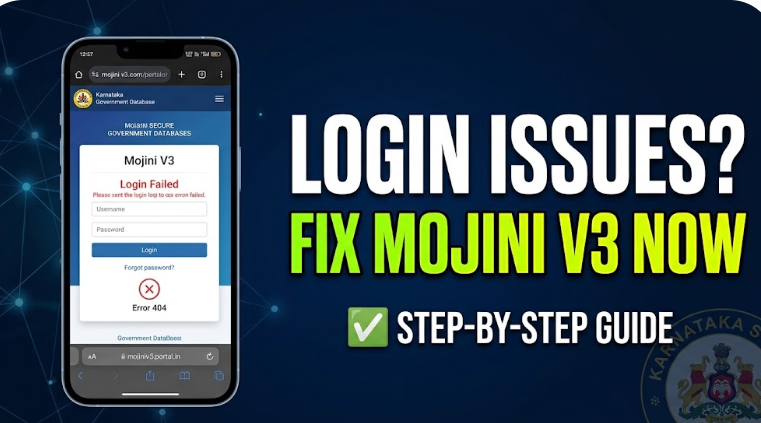
Accessing government property portals can sometimes turn into a frustrating experience when technical glitches, forgotten credentials, or server timeouts block your access. If you are attempting a mojini v3 login and constantly encountering landing page timeouts, invalid user credentials, or system processing failures, you are not alone.
The Mojini V3 portal is Karnataka’s centralized land record management system designed to streamline spatial data, RTC access, revenue services, and land application verification. However, high server traffic, outdated browser sessions, and system updates can trigger unexpected login failures.
This comprehensive troubleshooting guide breaks down every common login error on the Mojini V3 system, providing actionable, step-by-step solutions to restore your portal access safely and quickly.
Understanding the Mojini V3 Login Ecosystem
Before jumping into technical fixes, it is crucial to understand how the mojini v3 portal access works. Unlike simple consumer websites, state revenue databases rely on high-security identity verification, strict session limits, and constant database synchronization.
When you attempt a mojini v3 user authentication, your browser sends an encrypted request to the state server. If any parameter—such as network handshake, spatial data loading, or temporary browser caching—fails to match system requirements, the server rejects the request.
Common Mojini V3 Login Errors & How to Fix Them
Below are the most frequent access errors reported by users, along with exact solutions to resolve them.
1. “Invalid User Credentials” or Authentication Failure
This is the most common roadblock during a mojini v3 sign in attempt. It typically occurs due to incorrect password entry, caps-lock issues, or outdated account records.
- Clear Browser Cache: Stored cache files often autosuggest old or incorrect passwords. Clear your browser history and cache before retrying.
- Verify Case Sensitivity: Passwords on the portal are case-sensitive. Ensure your keyboard layout is set to the default language and Caps Lock is toggled off.
- Try Incognito / Private Mode: Opening a private window bypasses conflicting browser extensions and cached auto-fill data.
2. “Server Response Timeout” or Blank Screen
A blank white screen or continuous spinning wheel indicates that the backend server is overwhelmed by heavy web traffic or undergoing scheduled maintenance.
- Avoid Peak Usage Hours: Access the portal during off-peak windows, such as early morning (before 9:00 AM) or late evening (after 7:00 PM).
- Switch Domain Gateways: If accessing via a bookmarked link, navigate directly through the primary state portal home page rather than a deep sub-url.
- Disable Active VPNs: Connecting through Virtual Private Networks can trigger firewall blocks on state government databases. Turn off active VPN proxies.
3. Captcha Code Not Loading or Showing Invalid
If the security captcha fails to refresh, your session token may have expired due to inactivity.
- Hard Refresh the Page: Press
Ctrl + F5(Windows) orCmd + Shift + R(Mac) to fetch a fresh captcha seed from the server. - Enable JavaScript: Ensure JavaScript is enabled in your web browser settings, as the captcha module relies on dynamic scripts.
Step-by-Step Mojini V3 Password Reset Process
If you have completely forgotten your portal password or your account has been locked due to repeated incorrect entries, follow this step-by-step recovery process to restore access:
- Navigate to the Official Portal Home: Visit the verified Mojini V3 login gateway landing page.
- Click on “Forgot Password / Reset Credentials”: Located directly below the primary authentication box.
- Enter Registered Identification: Input your registered mobile number, User ID, or Aadhaar-linked credentials as required by the system.
- OTP Verification: Enter the One-Time Password (OTP) dispatched to your registered mobile device. Do not refresh the page while waiting for the SMS transmission.
- Construct a New Password: Create a strong password containing at least 8 characters, including uppercase letters, numbers, and special symbols (e.g.,
#,@,$). - Re-authenticate: Return to the primary screen and test your new credentials with a mojini v3 mobile login or desktop browser session.
Technical Browser Requirements for Smooth Portal Navigation
Technical issues are often client-side rather than server-side. To ensure smooth navigation without encountering a mojini 3 login error, verify that your device meets the following setup standards:
| Requirement Parameter | Recommended Setting |
|---|---|
| Supported Web Browsers | Google Chrome (v90+), Mozilla Firefox (v88+), Microsoft Edge |
| Mobile Browsers | Chrome Mobile, Safari (iOS 14+) |
| JavaScript State | Explicitly Enabled |
| Cookies & Local Storage | Allowed for Government Domains |
| Screen Resolution | 1280 x 720 (Desktop) / Standard Mobile Viewport |
| Network Speed | Minimum 2 Mbps stable connection |
How to Access Mojini V3 Safely via Smartphone
Many citizens prefer using their smartphones to handle mojini v3 user registration and land record queries. While the system is responsive, mobile browsers handle session data differently than desktop platforms.
Follow these tips for seamless mobile access:
- Use Google Chrome or Safari: Avoid third-party in-app browsers (like those inside messaging apps). Always open links directly in a dedicated mobile browser.
- Enable Desktop View when Needed: If desktop-only dropdown menus do not render correctly on your phone screen, tap the browser settings menu and select “Desktop Site”.
- Do Not Use Auto-Fill: Mobile auto-fill functions sometimes append hidden spaces after usernames or passwords, causing authentication failures. Type your credentials manually.
Essential Security Guidelines for Mojini V3 Users
Because the Mojini V3 system handles sensitive land, revenue, and spatial identification data, safeguarding your portal profile is critical. Fraudulent sites and phishing portals often mimic official government homepages to capture credentials.
Protecting Your Account against Online Threats
- Verify URL Extensions: Always confirm that the address bar ends with an official government domain extension (such as
.gov.inor.karnataka.gov.in). - Never Share OTPs: Government officials will never contact you via telephone or messaging apps to request your login OTP or password.
- Log Out After Every Session: Never leave your session open on public computers or shared cyber cafe terminals. Always click the explicit “Logout” button before closing the browser tab.
- Keep Devices Updated: Ensure your phone or PC has the latest security updates and antivirus software installed.
When to Contact Mojini V3 Portal Helpdesk
If you have tried clearing your cache, resetting your password, and using different browsers but still cannot access your profile, your account may be subject to a backend database lock.
In such cases, reach out to official support channels:
- District Revenue Office: Visit your local Taluk or District Revenue center for manual identity verification.
- System Help Desk Email: Send a formal support inquiry attaching a screenshot of the exact error code, your registered User ID, and contact details.
- Help Line Number: Call the official state revenue helpline during working hours (Monday through Saturday, 10:00 AM to 5:30 PM).
Frequently Asked Questions (FAQs)
What should I do if my Mojini V3 account gets locked?
Accounts are temporarily suspended after five consecutive failed login attempts. Wait 24 hours for the automatic security lock to expire, or use the “Forgot Password” link to trigger an immediate unlock via OTP.
Can I access Mojini V3 without registering an account?
Public services like checking general RTC application status or viewing spatial maps may be accessible without log in, but executing official edits, applying for mutation, or printing certified extracts requires full mojini v3 user authentication.
Why does the portal say “Session Expired” right after logging in?
This happens when your system date and time are out of sync with the server clock, or if your browser is blocking essential session cookies. Ensure your device clock is set to automatic network time.
By following these troubleshooting procedures, verifying your technical configuration, and adhering to safe digital authentication practices, you can easily bypass mojini v3 login failures and manage your land records without delays.
Leave a Reply