
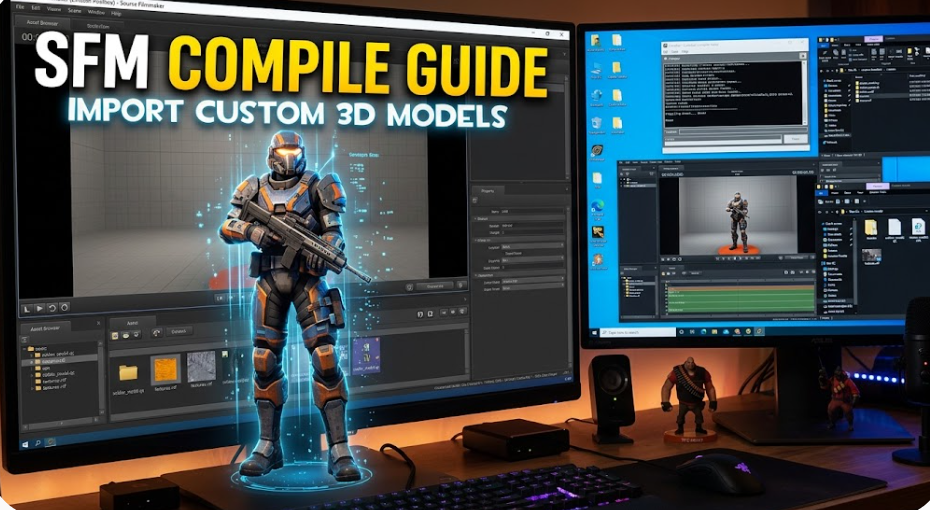
If you’ve spent any time working in Source Filmmaker (SFM), you know how liberating it feels to create custom scenes. However, you quickly hit a wall when relying solely on Valve’s default asset library. To bring your own original characters, custom props, or unique environments into SFM, you need to master the SFM compile process.
Unlike modern real-time game engines (like Unreal Engine or Unity) where you can drag and drop .fbx or .obj files directly into a scene, the Source Engine relies on a proprietary compiled model format (.mdl).
This guide walks you through the exact, step-by-step pipeline to convert, structure, and compile your 3D assets for Source Filmmaker without headaches.
Understanding the Source Engine Pipeline
Before touching any tools, it helps to understand how Source Filmmaker processes custom assets. SFM does not read raw 3D geometry files. Instead, it requires a compiled set of interconnected files:
.mdl– The main model file containing skeletal data, animations, and references..vtx/.vvd– Files storing vertex, strip, and hardware-rendering data..phy– The collision mesh (physics model) that defines how the object interacts with physical forces..vtf&.vmt– The texture image file (Valve Texture Format) and the material definition text file (Valve Material Type).
To bridge the gap between your 3D software (Blender, Maya, or 3ds Max) and SFM, you use an intermediate file (usually an .smd or .dmx file) and run it through a compiler using a Quality Control (.qc) script.
Essential Tools You Need Before Starting
To follow this tutorial, download and set up the following tools:
- Source Filmmaker (Installed via Steam).
- Crowbar – The standard, user-friendly compiler/decompiler tool for Source Engine games.
- Blender (or your preferred 3D modeling program) + Blender Source Tools add-on (for exporting
.smdor.dmxfiles). - VTFEdit or VTFEdit Reloaded – To convert standard
.png/.tgaimages into Source-compatible materials.
Step 1: Preparing and Exporting Your 3D Asset
Whether you are building a simple coffee mug prop or a complex character, preparation inside your 3D program is critical.
1. Scale and Orientation
- Scale: Source Engine uses inches as its default system unit (1 Source Unit = 1 Inch). If your model is imported as a giant or an microscopic speck, check your scene’s export scale.
- Orientation: Ensure your model faces forward along the correct axis (usually +Y or -Z depending on your software’s coordinate setup).
2. Rigging and Bones
Even static props require at least one single root bone attached to the mesh via skin weights. If you are compiling a character and want it to use Valve’s default animations, map your skeletal structure to match the ValveBiped bone naming convention.
3. Exporting the Geometry
Using your software’s Source export tool (e.g., Blender Source Tools):
- Set your export format to
.smdor.dmx. - Export your primary mesh as the reference mesh (e.g.,
my_model_ref.smd). - (Optional) Export a low-polygon version of your mesh to serve as the collision/physics mesh (e.g.,
my_model_phys.smd).
Step 2: Converting Textures (.vtf and .vmt)
Source Filmmaker will render your model as a bright pink and black checkerboard if your textures are configured incorrectly.
Creating the .vtf File
- Open VTFEdit.
- Go to File > Import and select your diffuse/albedo texture (
.pngor.tga). - Keep default settings (ensure dimensions are powers of 2, such as 512×512, 1024×1024, or 2048×2048).
- Save the file as
my_texture.vtfinside your SFM directory under:usermod/materials/models/your_folder/
Creating the .vmt File
A .vmt file tells SFM how to display the texture (e.g., shiny, dull, transparent). Create a plain text file, paste the following code, and save it as my_texture.vmt in the exact same materials folder:
Code snippet
"VertexLitGeneric"
{
    "$basetexture" "models/your_folder/my_texture"
    "$surfaceprop" "metal"
    "$halflambert" "1"

    // Optional PBR / Phong specular settings
    "$phong" "1"
    "$phongexponent" "10"
    "$phongboost" "1"
    "$phongfresnelranges" "[0.05 0.5 1]"
}
Important: The path inside
$basetexturemust not includematerials/or the.vtfextension. SFM automatically assumes it is looking inside thematerialsdirectory.
Step 3: Writing the Quality Control (.qc) Script
The .qc file is a plain text script that tells the compiler where to find your raw exported files, where to output the final .mdl, and how the materials should connect.
Create a text file named my_model.qc and paste this template:
Code snippet
$modelname "your_folder/my_model.mdl"

$bodygroup "body"
{
    studio "my_model_ref.smd"
}

$cdmaterials "models/your_folder/"

$surfaceprop "default"

$sequence "idle" {
    "my_model_ref.smd"
    fps 30
}

$collisionmodel "my_model_phys.smd"
{
    $mass 10.0
    $concave
}
Breakdown of Key QC Commands:
$modelname: Defines the target path insideusermod/models/where SFM will store the output file.$bodygroup: Points to your primary reference mesh.smd.$cdmaterials: The exact subfolder path insidematerials/where your.vmtand.vtffiles live.$sequence: Source models require at least one animation sequence to compile properly. Pointing to your base.smdcreates a default static pose.$collisionmodel: Points to your physical collision mesh.
Step 4: Compiling the Model Using Crowbar
With your .smd, .vtf, .vmt, and .qc files in order, it’s time to compile.
- Open Crowbar and navigate to the Set Up tab.
- Ensure the Game Executable points to your
sfm.exepath:Steam/steamapps/common/SourceFilmmaker/game/sfm.exe - Point the Compiler (studiomdl.exe) to:
Steam/steamapps/common/SourceFilmmaker/game/bin/studiomdl.exe - Go to the Compile tab in Crowbar.
- Under QC File, select browse and load your
my_model.qc. - Set the Target to Game folder.
- Click Compile.
Check the compile output log at the bottom. If successful, you will see a message reading Completed QC file processing.
Step 5: Testing Your Model in Source Filmmaker
- Launch Source Filmmaker.
- Open the Animation Set Editor, click the + button, and choose Create Animation Set for New Model.
- In the Model Browser, filter by your subfolder name (
your_folder). - Select your newly compiled model. If everything was set up correctly, your model will render with full geometry and textures intact.
Troubleshooting Common SFM Compile Errors
| Error Symptom | Cause | Solution |
| Pink & Black Checkerboard | Missing or incorrect .vmt/.vtf file paths. | Open your .qc file and check $cdmaterials. Open your .vmt file and verify $basetexture points to the exact VTF path without typos. |
| Model is Invisible | Incorrect bone assignment or bad scale. | Ensure your 3D mesh is properly bound to a bone in Blender/Maya and exported with applied scale (Ctrl+A > All Transforms). |
| Studiomdl.exe Crashes | Exceeded vertex or bone limits. | Source Engine models have a limit of 128 bones per sub-mesh and ~65,000 vertices per material group. Split heavy meshes or optimize bone counts. |
| Crowbar Log: “Cannot find file…” | Relative path mismatch in QC file. | Keep your .qc file in the same folder as your .smd files when executing Crowbar. |
Frequently Asked Questions (FAQ)
Can I import FBX files directly into SFM?
No. Source Filmmaker cannot read .fbx files natively. You must import the .fbx into a 3D editor like Blender, assign a bone, and export it as an .smd or .dmx file before compiling.
What is the difference between SMD and DMX formats?
.smd(Studio Model Data) is an older text-based format. It is simpler to edit manually and broadly compatible across all Source tools..dmx(Datamodel Exchange) is Valve’s modern binary format. It supports flex animation data (facial shape keys) and higher vertex precision.
How do I add facial expressions to custom characters?
Facial expressions require Shape Keys (Flexes) in your 3D software. When exporting to .dmx, these morph targets are included automatically and linked in your .qc file using $flexfile and $flexcontroller rules.
Leave a Reply